
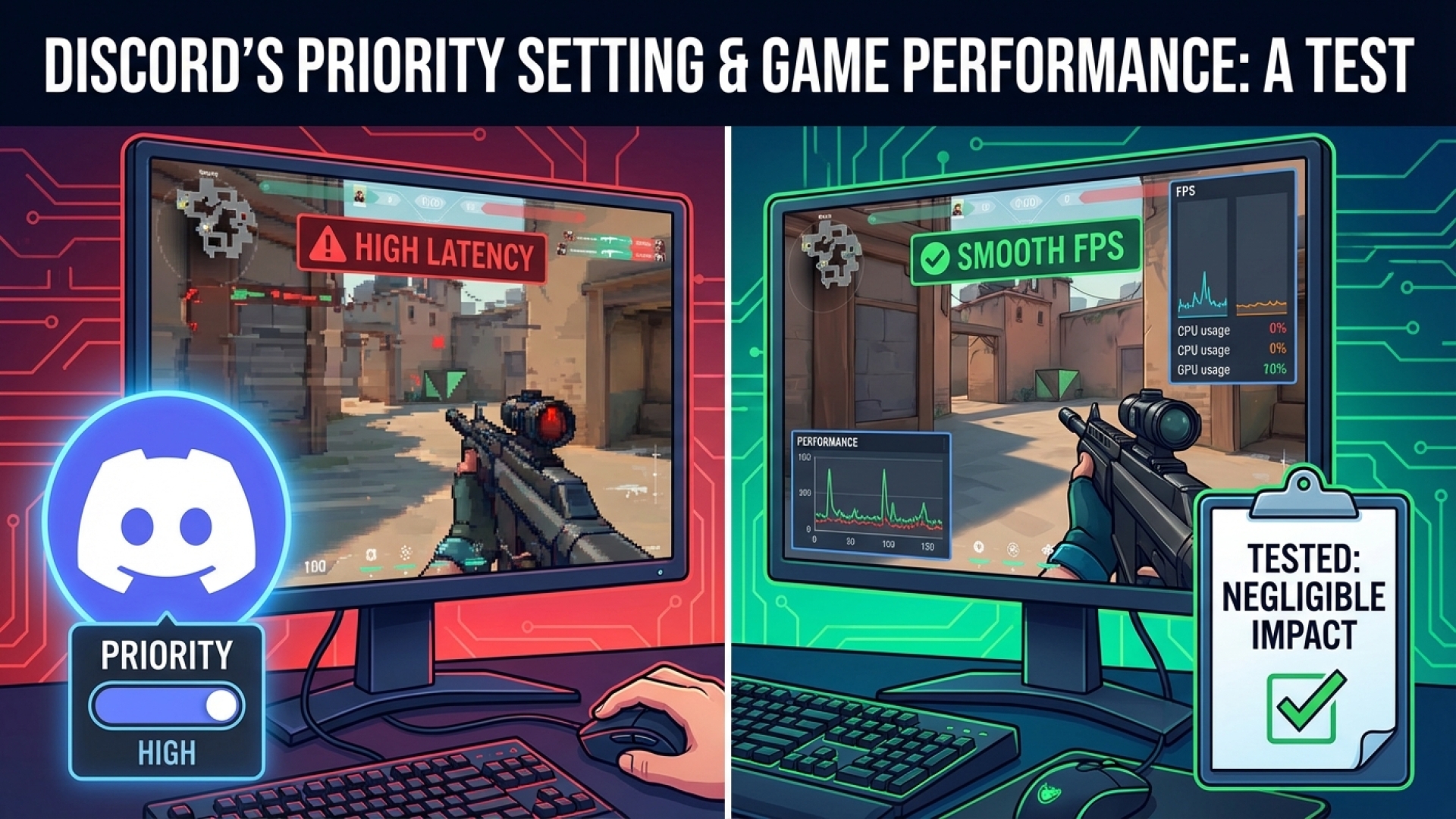
In the high-stakes world of competitive gaming, every millisecond is a heartbeat, and every frame per second (FPS) is a lifeline. For years, gamers have meticulously optimized their systems, stripping away background tasks to ensure maximum performance. Recently, however, a new whisper has been circulating through the community: Is Discord, the holy grail of gaming communication, secretly sabotaging your frame rates? At Digital Tech Explorer, we decided to put these claims to the test and dive deep into the mechanics of process priorities.
The controversy centers on how Discord interacts with the Windows kernel. Some users have reported that Discord’s default settings are too aggressive, hogging CPU resources that should be dedicated to the game. This supposedly leads to erratic frame time spikes and stuttering—the ultimate enemies of the professional esports player.

What Exactly is Process Priority?
As a software engineer-led platform, we believe in understanding the “why” behind the “how.” A process priority is essentially a ranking system for your Operating System. It tells Windows which programs deserve a bigger slice of the CPU pie. Most applications run at a ‘Normal’ level, meaning they play fair with others.
However, Windows allows for tiers like ‘Above Normal,’ ‘High,’ and the extreme ‘Realtime.’ When you launch the Discord app, it doesn’t just run one process; it typically launches eight. While most stay in the ‘Normal’ lane, specific helper processes demand more attention from your hardware.
| Process Name | Default Priority Level | Function |
|---|---|---|
| Discord.exe (Main) | Normal | UI and general navigation |
| Discord.exe (Sub-process) | Above Normal | Voice processing and streaming |
| DiscordSystemHelper.exe | High | Low-latency communication hooks |
Real-World Testing: Counter-Strike 2
To see if these priority levels actually impact 3D gaming, we ran a series of benchmarks using Counter-Strike 2. We chose this title because it is notoriously CPU-dependent and highly sensitive to latency. Our test rig featured a high-end AMD Ryzen 9 9900X and an RTX 5090 GPU.
We tested three distinct configurations:
- Clean Slate: Discord completely closed.
- Default: Discord running with its standard “High” and “Above Normal” priorities.
- Manual Neutral: All Discord processes manually forced to “Normal” via Task Manager.
The Verdict: Negligible Gains or Hidden Drain?
Our findings at Digital Tech Explorer suggest that for the modern enthusiast, the impact is minimal. The frame time graphs were virtually identical across all three tests. While there was a fractional increase in frame times when Discord was active, the difference was measured in microseconds—hardly enough to blame for a missed headshot.
That said, tech is never one-size-fits-all. If you are running an older CPU or a system that is already struggling with modern PC games, those “High” priority helper processes might be the straw that breaks the camel’s back. If you want to squeeze every ounce of power out of your machine, here is how you can take control.
How to Manually Adjust Discord Priorities
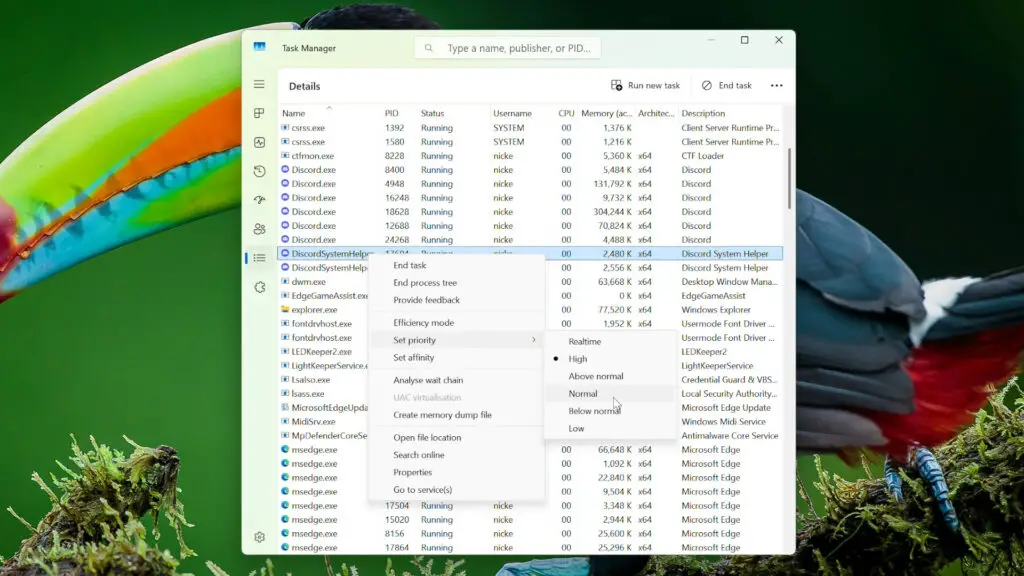
- Launch Discord and then your game.
- Press
Ctrl + Shift + Escto open the Task Manager. - Navigate to the Details tab.
- Locate all instances of
discord.exeandDiscordSystemHelper.exe. - Right-click each one, hover over Set Priority, and select Normal.
A Pro-Tip from TechTalesLeo: While it might be tempting to set your game to “Realtime” priority to gain an edge, we strongly advise against it. Giving a game “Realtime” access can starve essential system processes (like your mouse driver or keyboard input), leading to total system crashes. Stick to “Normal” or “Above Normal” for your primary applications to keep your system stable.
At Digital Tech Explorer, our mission is to help you stay ahead of the trends. Whether it’s optimizing your AI acceleration or just making sure your voice chat isn’t killing your K/D ratio, we’re here to provide the data you need to make informed decisions.
Disclaimer: All content on Digital Tech Explorer is for informational and entertainment purposes only. We do not provide financial or legal advice. Some of the links on Digital Tech Explorer are affiliate links; we may earn a commission if you click through and make a purchase, at no additional cost to you.
About the Author: TechTalesLeo is a storyteller and tech enthusiast dedicated to bridging the gap between complex digital innovation and everyday usability.