
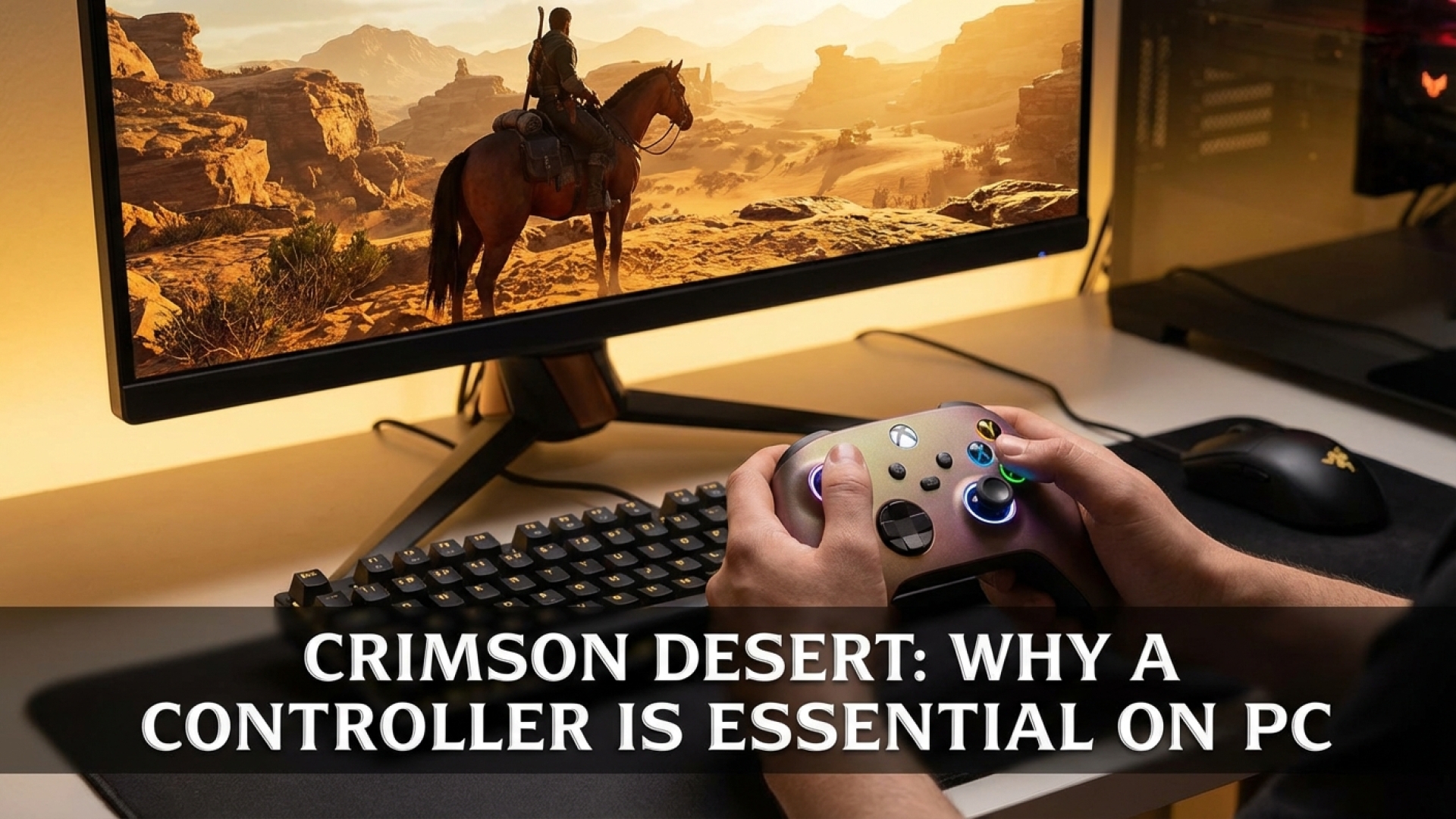
At Digital Tech Explorer, we’ve spent years analyzing how hardware interfaces impact the immersion of sprawling open-world epics. When it comes to Pearl Abyss’s latest masterpiece, Crimson Desert, the scale is nothing short of breathtaking. However, for a game this ambitious, its control scheme is surprisingly intricate. With dozens of input combinations for combat, traversal, and interaction, the question of “how to play” becomes just as important as “what to play.”
While many PC purists naturally gravitate toward a mouse and keyboard, Crimson Desert is a title where you owe it to your ergonomics—and your sanity—to plug in a controller. As a storyteller who focuses on the intersection of technology and usability, I’ve found that the hardware you hold determines whether you’re fighting the monsters or fighting the UI.
The Case for Controller Play: Ergonomics Meets Execution
Admittedly, playing with a controller isn’t without its quirks. In a game with this many mechanics, developers have to map an immense number of actions to a limited number of buttons. You may find yourself jumping when you intended to pick up an item, or accidentally meleeing your horse instead of mounting it because the “mount” and “attack” buttons share close quarters.
However, this “containment” is actually its greatest strength. In the heat of a boss battle where a single hit can deplete half your health bar, speed is everything. With a controller, your healing items are mapped directly to the D-pad. On a standard keyboard layout? You might find yourself reaching for the F3 key while trying to maintain your WASD movement—a finger-stretching maneuver that is neither intuitive nor efficient for high-stakes gaming.

Keyboard Challenges: The “Shift” Key Struggle
One of the more frustrating aspects of the default keyboard bindings in Crimson Desert involves the sprint mechanic. While Kliff can start running with a few taps, maintaining speed on horseback requires a constant hammering of the Shift key. If you have “Sticky Keys” enabled on your Windows machine, this rapid-fire input can trigger unwanted OS pop-ups in the middle of a chase.
Beyond the software interruptions, there is the physical toll. Over a multi-hundred-hour action RPG, the repetitive stress of reaching for Shift and various function keys can lead to significant hand fatigue. Much like my experience in Final Fantasy 14, where I eventually had to switch to an MMO mouse to survive the “keyboard dance,” Crimson Desert demands a more consolidated input method.
Input Comparison: Keyboard vs. Controller
| Action Type | Keyboard & Mouse Experience | Controller Experience |
|---|---|---|
| Combat Combos | High precision, but requires complex multi-key reaches. | Fluid and tactile; easier to execute “flow” states. |
| Consumables/Healing | Mapped to Function keys (F1-F4), hard to reach mid-fight. | Instant access via the D-pad. |
| Movement/Sprinting | Repetitive Shift-key tapping can cause hand fatigue. | Smooth analog control for both walking and galloping. |
| Customization | Fully rebindable to suit individual preferences. | Limited native in-game rebinding options. |

The Verdict: Listen to the Recommendations
The only area where the keyboard truly wins is customization. If you are someone who enjoys meticulously redesigning a control layout from scratch, the keyboard offers that freedom. However, for most players who want to dive into the story and the action without a 30-minute setup phase, the controller is the superior tool for this particular job.
Even Steam’s own overlay suggests using a controller the moment you launch the game. At Digital Tech Explorer, our mission is to help you make informed decisions that enhance your technical experience. In the case of Crimson Desert, following that small pop-up recommendation will save your pinky finger and significantly improve your combat flow.
For more insights into the latest hardware trends and PC games, stay tuned to our latest updates.
Affiliate Disclaimer: Some of the links on Digital Tech Explorer are affiliate links. This means we may earn a commission if you click through and make a purchase, at no additional cost to you. Our recommendations are based on thorough research and personal experience.
General Disclaimer: All content on Digital Tech Explorer is for informational and entertainment purposes only. We do not provide financial or legal advice.