
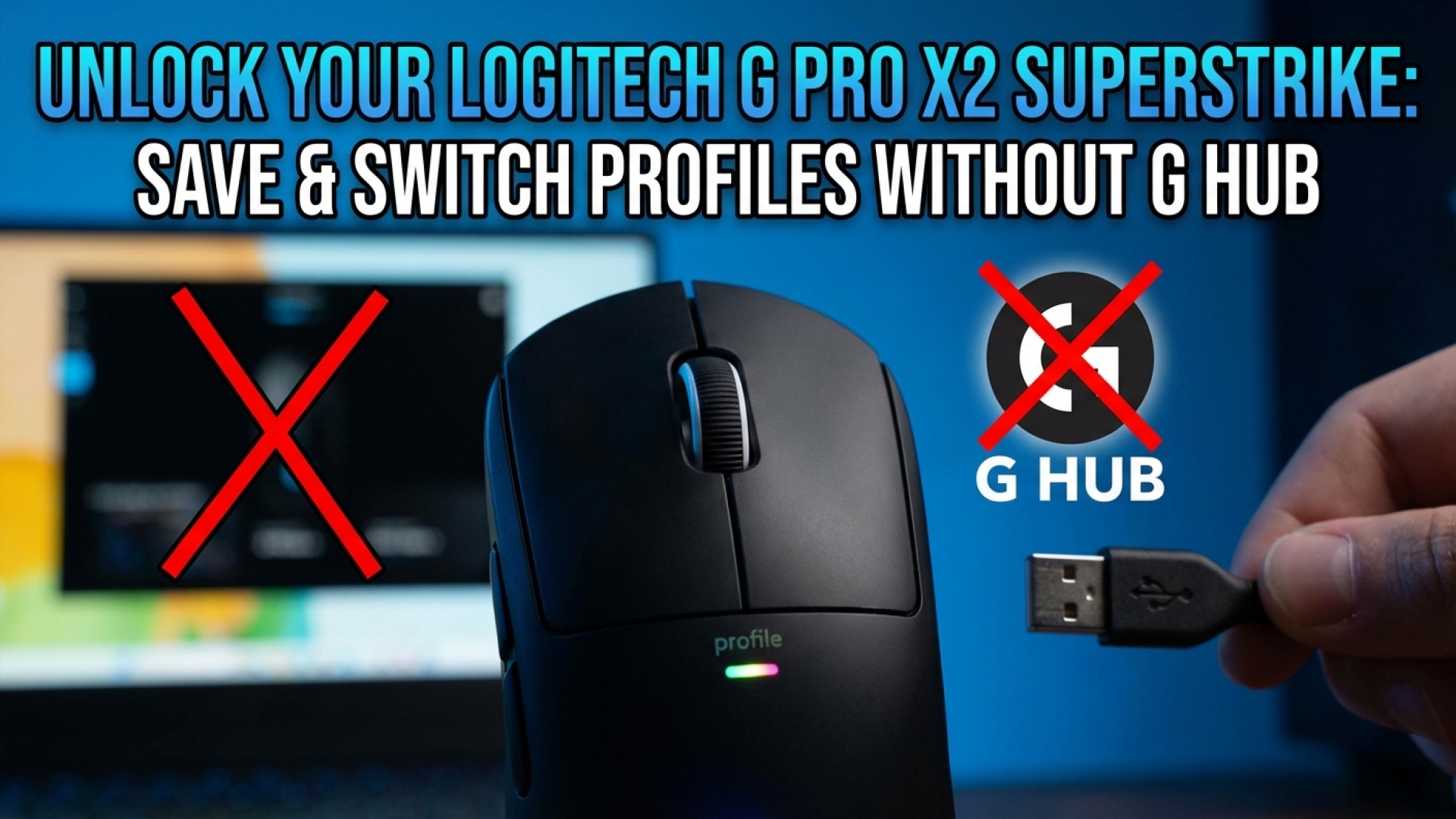
At Digital Tech Explorer, we are committed to helping developers and tech enthusiasts stay ahead of trends by providing deep dives into the latest hardware. The Logitech G Pro X2 Superstrike has made waves as the world’s first proper analogue and rapid trigger gaming mouse. While its performance is top-tier, many users find the requirement to keep G Hub running in the background a significant hurdle. Whether you are looking to minimize system latency or you’re a developer working in a Linux environment, you don’t actually need the software active at all times.
By utilizing the mouse’s onboard memory, you can save your specific configurations directly to the hardware. As TechTalesLeo, I’ve navigated countless software suites, and Logitech’s onboard mode is one of the most effective ways to ensure a “set it and forget it” experience across different machines.
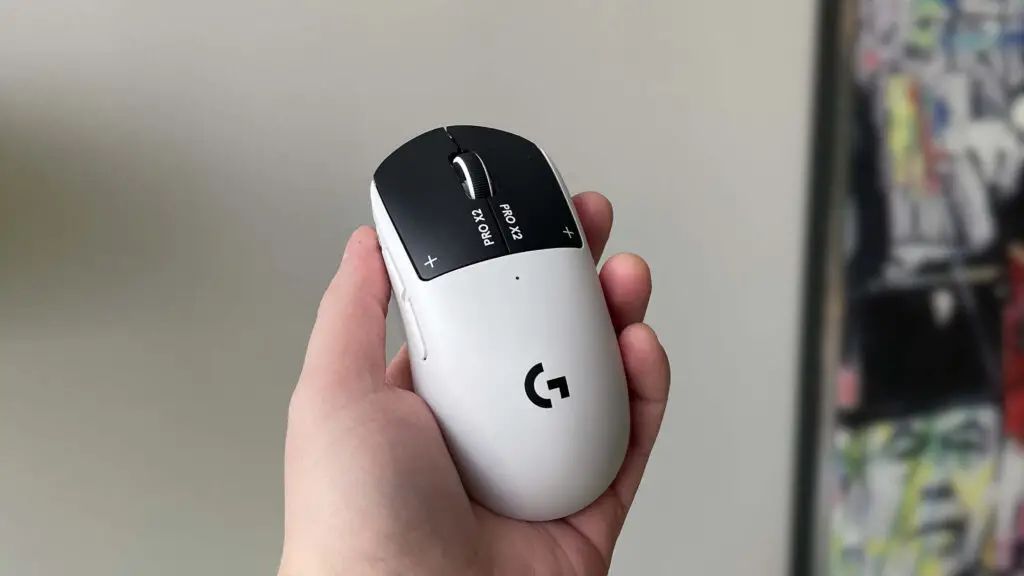
Saving Settings to Onboard Memory
If you want your custom DPI, polling rate, haptic feedback, and actuation settings to persist without G Hub consuming system resources, you can save them to a physical slot on the mouse. This is essential for competitive play where every millisecond of CPU overhead matters.
To save your profile:
- Open G Hub and select the Pro X2 Superstrike.
- Click the Settings (cog icon) in the top-right corner.
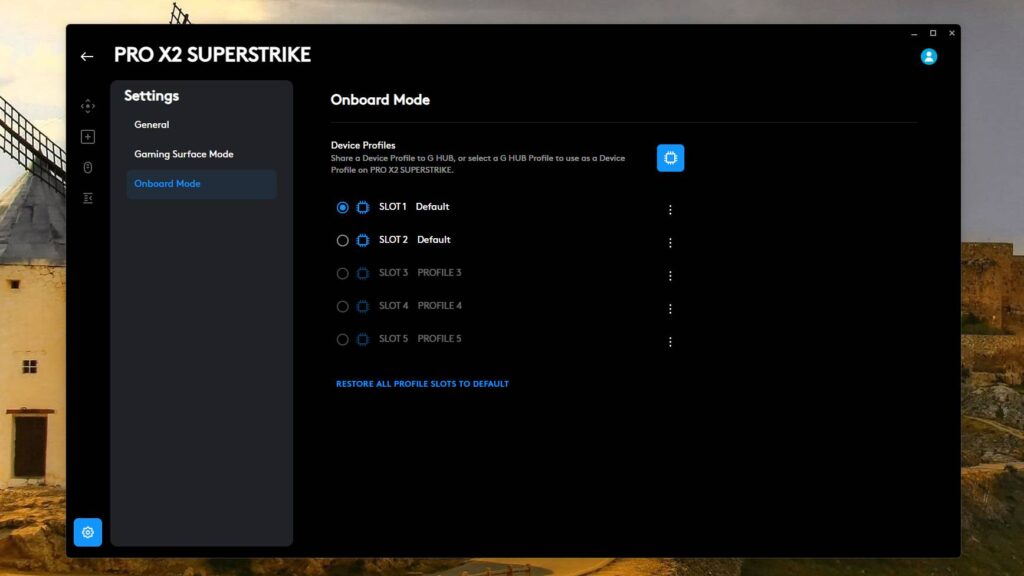
- Toggle Onboard Mode to “On.”
- Select the hamburger menu next to Slot 1.
- Choose Import G Hub Profile and select the configuration you spent time perfecting.
Enabling Profile Switching Without G Hub
For users who transition between intense gaming sessions and standard desktop work, switching configurations on the fly is a necessity. You might want to drop the polling rate to save battery during work and crank it up to 4K or 8K for gaming. The Superstrike supports up to five distinct onboard profiles, provided you assign a toggle button.
How to enable hardware-level profile switching:
- Navigate to the Profile dropdown in G Hub and select Manage Profile. Create up to five profiles with varied settings (DPI, polling, and HITS).
- In each profile, go to the Assignments tab. Under the “System” category, find Onboard Profile Cycle and assign it to a mouse button (we recommend M5).
- Return to the Settings cog and ensure Onboard Mode is active.
- Import your different profiles into the available slots via the hamburger menu.
- You can now cycle through these profiles using the assigned button. The mouse’s LED indicator will flash a specific color to signify which profile is currently active.
G Hub Active vs. Onboard Memory Mode
To help you decide which setup is right for your workflow, here is a quick comparison of the two modes:
| Feature | G Hub Active | Onboard Memory Mode |
|---|---|---|
| System Latency | Low (Minor CPU overhead) | Minimal (No background software) |
| Portability | Requires software install on each PC | Plug-and-play on any device |
| Profile Switching | Automatic based on app detection | Manual via button toggle |
| Settings Complexity | Unlimited Macros/Scripts | Basic Assignments & Performance |
Advanced Control with G-Shift
One common complaint is the loss of a primary button when assigning the “Profile Cycle” command. At Digital Tech Explorer, we recommend using the G-Shift function to solve this. By assigning G-Shift to a button, you unlock a secondary layer of commands.
For example, you can set it so that holding M5 (acting as G-Shift) and clicking the Left Mouse Button cycles through your onboard profiles. This allows you to keep all your standard button functions during normal gameplay while still maintaining the flexibility of hardware-level profile switching.
While sacrificing a button for profile switching might be a minor adjustment, the ability to run the Logitech G Pro X2 Superstrike entirely through its onboard memory provides a cleaner, more efficient experience for tech enthusiasts and professionals alike. This method ensures your hardware performs at its peak, independent of any software constraints.
Affiliate Disclaimer: Some of the links on Digital Tech Explorer are affiliate links. This means we may earn a commission if you click through and make a purchase, at no additional cost to you. Our recommendations are based on thorough research and personal experience.