

If you’re still navigating the digital world with Windows 10, the upcoming end-of-life date of October 14, 2025, likely sparks questions about your PC’s future. The reassuring news, as we explore here on Digital Tech Explorer, is that your machine won’t immediately become obsolete. However, it’s a pivotal moment to start thoughtfully considering your upgrade pathways or exploring alternative solutions.
This scenario is common for many, whether due to hardware limitations preventing a seamless upgrade to Windows 11 or a simple preference for the familiar Windows 10 environment. Given the vast number of PCs still relying on this venerable operating system, understanding Microsoft’s end-of-life timeline and the crucial steps to maintain your system’s security is paramount. Here at Digital Tech Explorer, we believe in arming you with the insights to make informed decisions.
Understanding Windows 10 End-of-Life and Core Implications
For the everyday user, the curtain officially falls on Windows 10 support on October 14, 2025. Post this date, a crucial shift occurs: your PC will cease to receive essential updates, encompassing:
- Security updates
- Feature updates
- Technical support
While your PC will technically continue to function beyond this deadline, Microsoft issues a clear warning: it will grow significantly more susceptible to digital threats like viruses and malware. Operating an internet-connected device without these vital safeguards is a considerable gamble with your personal data. The challenge, then, becomes charting a course to maintain your system’s integrity and protect your valuable information.
The Paid Option: Windows 10 Extended Security Updates (ESU)
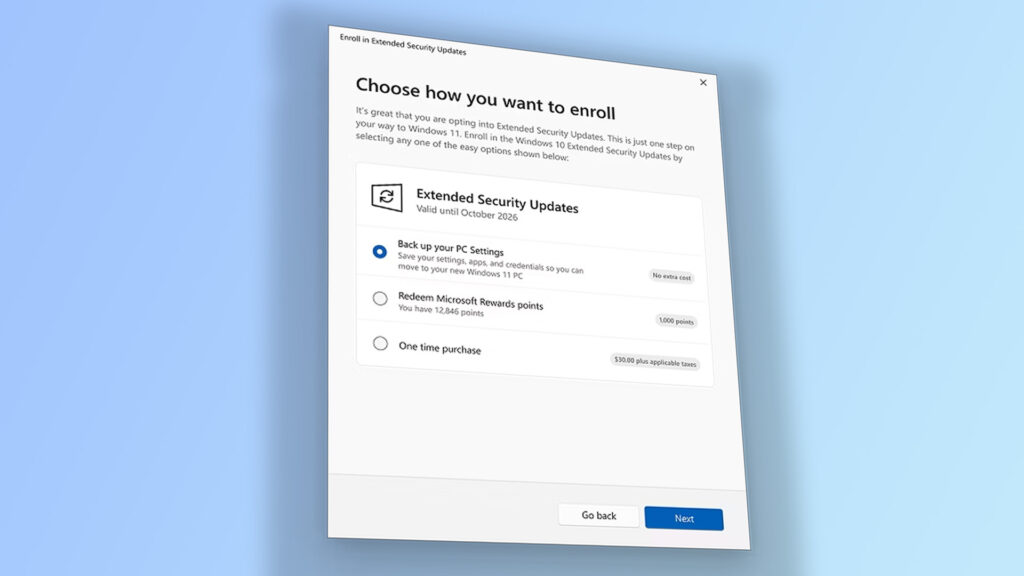
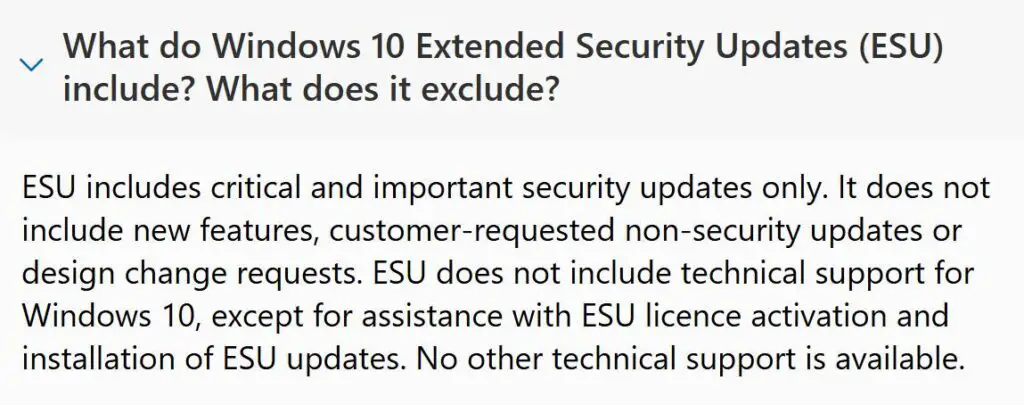
For those committed to their current Windows 10 setup, the most straightforward path to continued protection involves subscribing to Microsoft’s Extended Security Updates (ESU) program. Priced at $30 per PC for the initial year, this program exclusively delivers crucial security patches, safeguarding your system against emerging threats. It’s important to note that ESU does not introduce new features or offer technical support. This valuable option can typically be accessed via the Settings menu on eligible Windows 10 devices, though regional availability may vary.
Free Avenues for Extended Security Updates
Intriguingly, Microsoft also presents several pathways to acquire access to the ESU program without direct payment. One notable method leverages Windows Backup, enabling you to sync your PC’s settings and applications to the cloud – a process that necessitates a Microsoft account linked to your system. Furthermore, users within the European Economic Area (EEA) can simply log in with a Microsoft account during the program’s first year to automatically receive these complimentary updates.
A clever alternative for securing free ESU access involves redeeming your Microsoft Reward points. These points are accumulated through everyday activities, from browsing with Bing to gaming on Xbox, and can then be conveniently exchanged for an ESU subscription. This ingenious approach ensures your system continues to receive vital security safeguards without needing a monetary outlay.
Extended Support for Corporate Users
For our corporate readers, Microsoft extends a tailored option to prolong Windows 10 support for up to three years. This enterprise-grade plan features an escalating cost structure: the first year begins at $61, doubling annually, culminating in a $244 per device charge for the third and final year. Crucially, this offering, much like its consumer counterpart, focuses solely on delivering essential security updates to shield against malware and emerging threats. It represents a vital lifeline for businesses with more gradual upgrade cycles. Furthermore, organizations leveraging Windows 10 virtual machines and endpoints via Azure or Microsoft 365 products may benefit from additional Microsoft subsidies.
Alternative Solutions for Continued Use
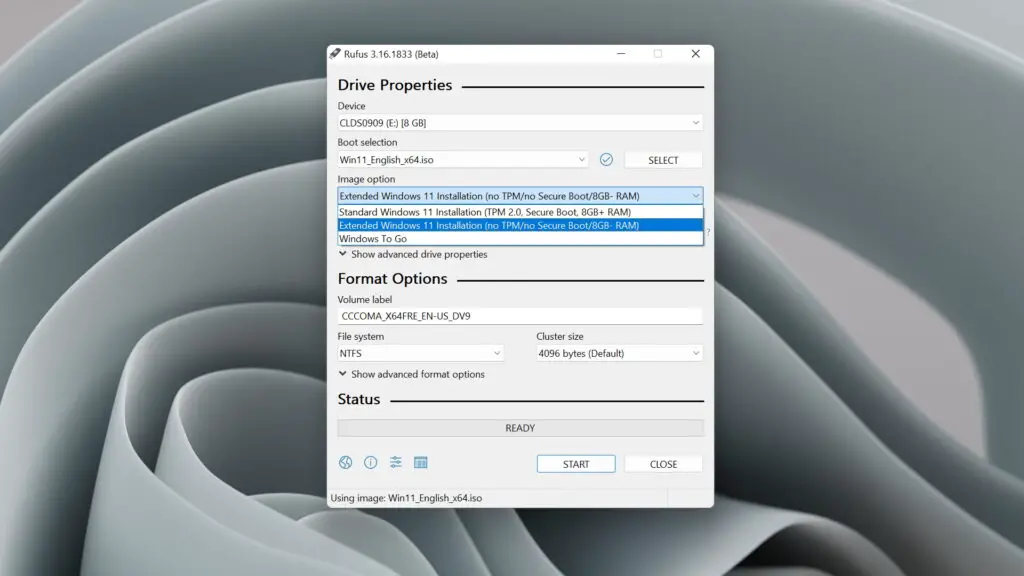
Venturing beyond Microsoft’s official pathways, tech enthusiasts might discover innovative workarounds for continued use. A popular method, often discussed in developer circles and explored here on Digital Tech Explorer, involves using a powerful tool like Rufus. This utility allows you to craft a bootable USB drive with Windows 11 installation files, cleverly bypassing stringent system requirements such as TPM 2.0 and Secure Boot, thus enabling an upgrade on otherwise ineligible older hardware. While this presents a compelling, free solution, it’s essential to acknowledge potential future compatibility challenges should Microsoft tighten its enforcement or if specific applications (like certain games) come to rely heavily on these bypassed prerequisites.
Alternatively, this transition period could serve as a prime opportunity to explore an entirely different digital landscape, such as Linux. Many contemporary Linux distributions are remarkably user-friendly, offering a robust, secure, and regularly updated environment that breathes new life into older hardware. It’s a path many tech-savvy users choose for its flexibility and open-source spirit.
Ultimately, the key takeaway is clear: you possess a spectrum of viable options to navigate the Windows 10 end-of-life gracefully, avoiding an immediate, forced upgrade. By strategically utilizing programs like ESU, you can significantly prolong the secure lifespan of your cherished Windows 10 machine for at least another year. However, as TechTalesLeo always emphasizes, proactive planning is paramount. Ensure you have a robust, long-term strategy in place well before all support avenues dissipate entirely after October 14, 2026. Stay informed, stay secure, and keep exploring the possibilities with Digital Tech Explorer.